
Player Lookup
Search any Rust player and get one report: identity, hours, combat, bans, Steam activity, inventory and community votes. This guide walks the report top to bottom and explains what each unlock costs.
Search a player
Search from the home page. The box takes a SteamID64, a Steam profile link (/profiles/... or /id/...) or a custom URL name. The report opens at once.
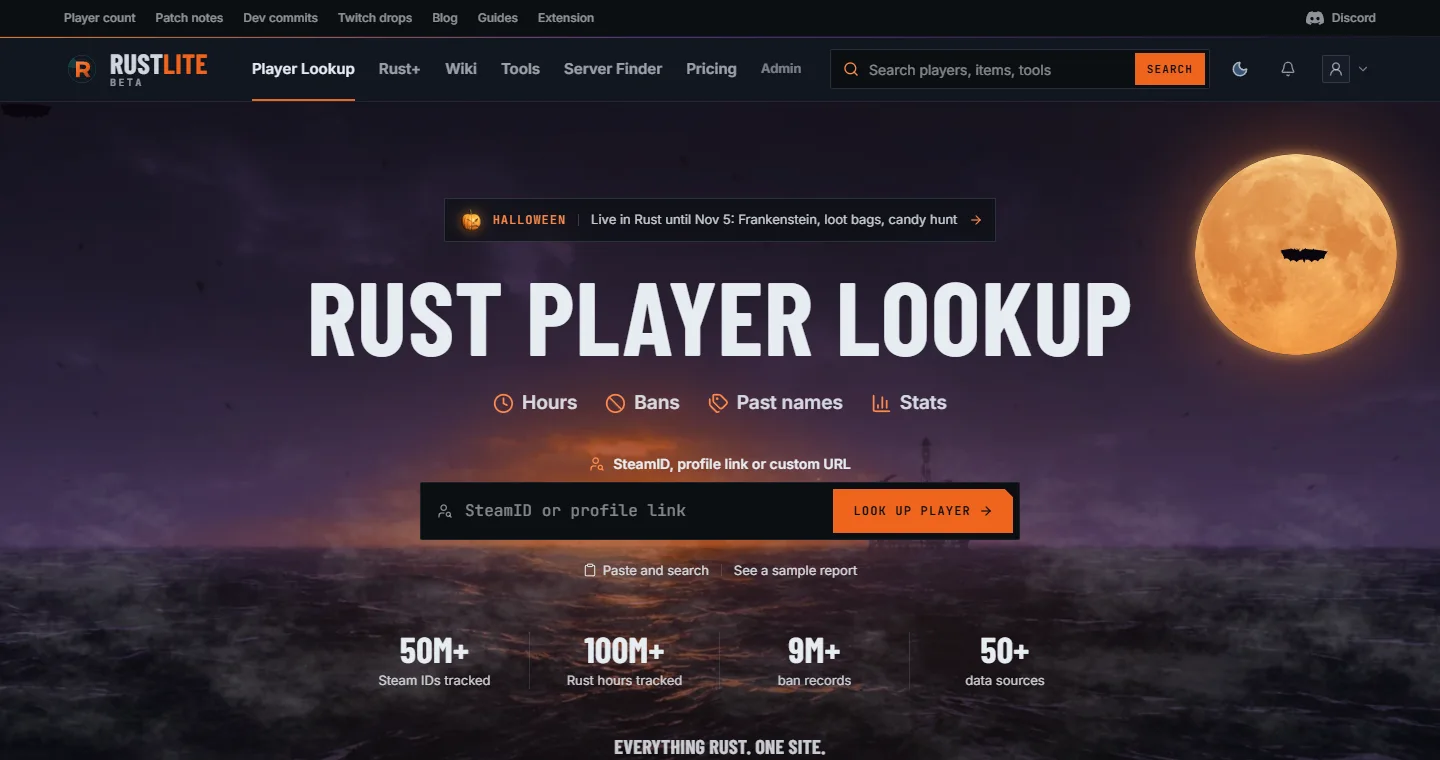
- Paste & search reads your clipboard and searches it in one click.
- If the clipboard already holds a SteamID or profile link when the page opens, a chip offers to search it.
- Every report has a search bar above the header, so you can jump from one player to the next. On a computer, press / to put the cursor in it.
- A search with no player behind it says No player found and keeps the search bar, so you can fix the input.
/lookup/<steamid>and/player/<steamid>both open a report. Bookmark either.
Read the report
The header identifies the player: avatar, current name, streamer-mode name, and one line of account facts (country, account age, Steam level, badges, games owned, account value and inventory value). The IDs menu next to the SteamID copies every ID format and the profile URLs.
- Under the name, two chips: what Steam shows right now (Online, Offline or In game with the server), and Public profile or Private profile.
- The bar over the header shows how old the public data is. Refresh reads it again. How to read this report opens this guide.
- On the right, Watch 48 h · 1 unlock starts online alerts, with your balance under it (see Online alerts).
- The strip under the facts: BattleMetrics opens their BattleMetrics profile when RustLite has matched it (Pro); below Pro it shows a lock. Steam opens their Steam profile. Watchlist and Export sit on the right.
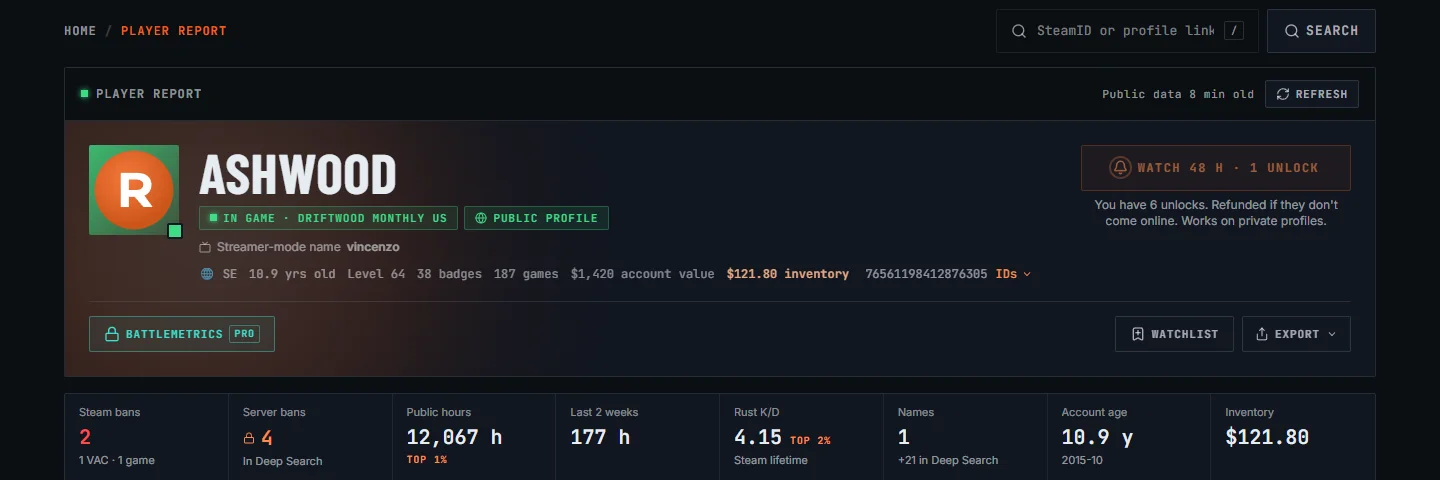
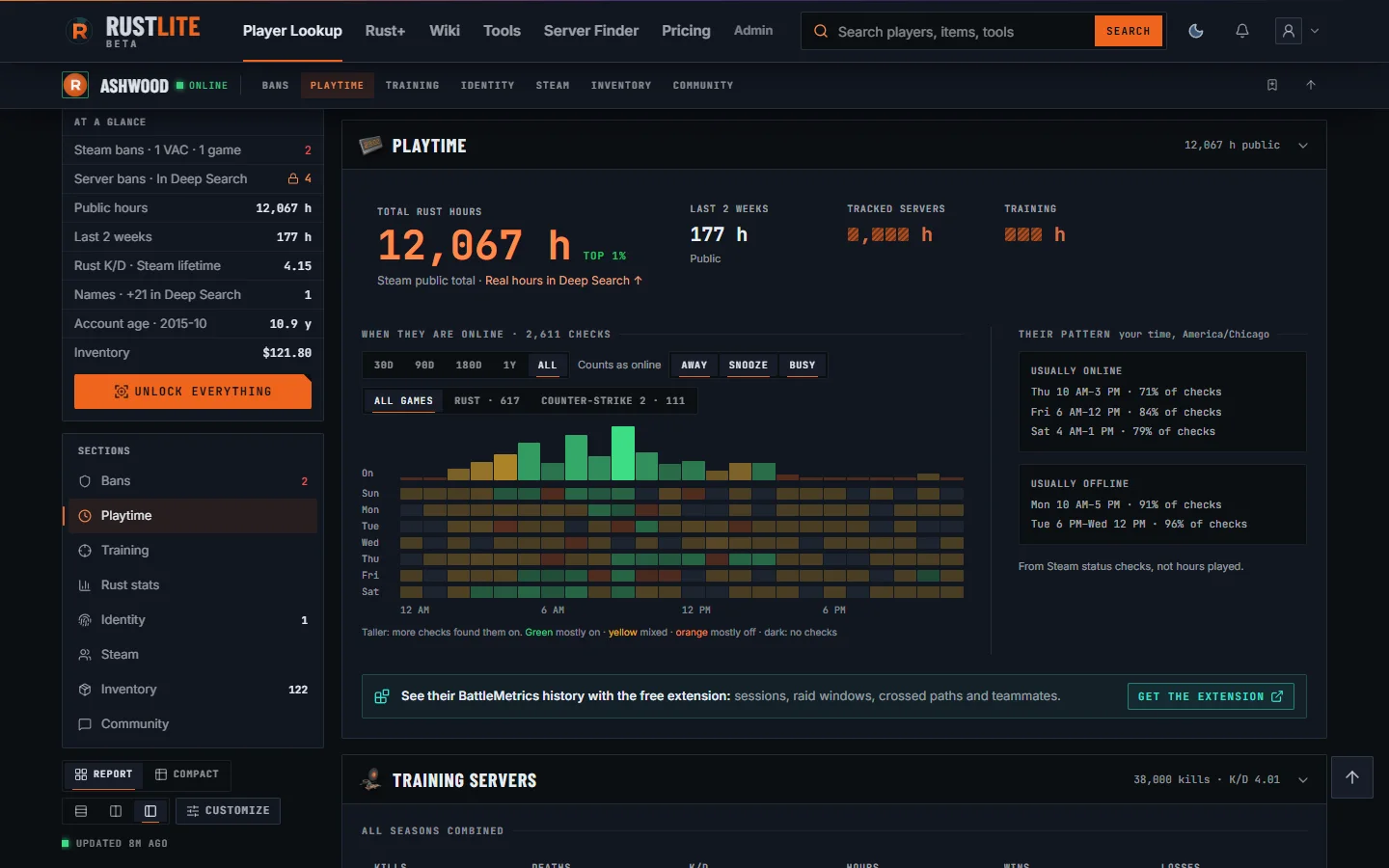
Under the header, one row of key numbers gives the short answer: Steam bans, server bans, public hours, the last 2 weeks, Rust K/D, names, account age and inventory value. A number only Deep Search can read says so in its tile.
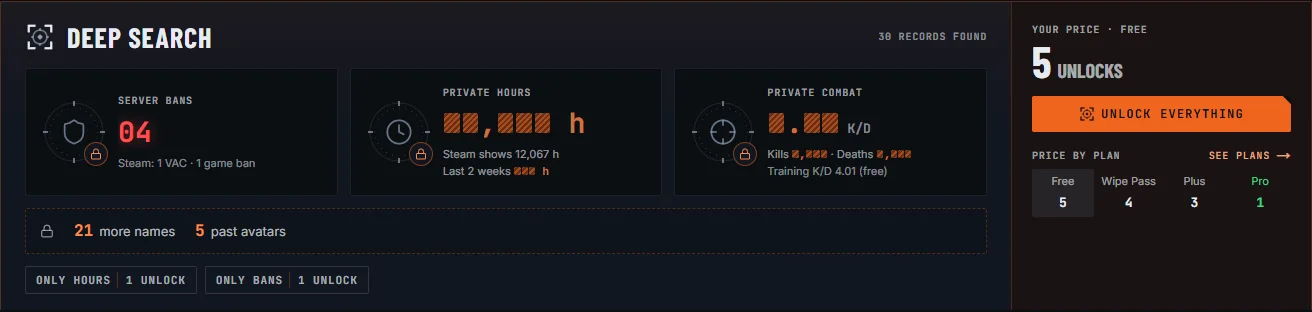
Under the key numbers sits the Deep Search panel, the one place to unlock the report. On a phone your price and the unlock button sit at the top of the panel.
- Three tiles show what the unlock opens: Server bans, Private hours and Private combat. A number only the unlock can read is masked, never shown as zero. Under each tile is what the report already knows, for example the hours Steam shows or the player's Steam bans.
- The dashed strip with the lock counts what RustLite already holds for this player: more names, past avatars, profile changes and removed friends. It shows how many, not what they are.
- The right column shows your price and the price on every plan. On the Free plan with no unlocks, or when you are signed out, it shows the plans and what each one includes, at the sale price while a sale runs. Signed in, See plans opens a plan picker over the report that goes straight to checkout. Signed out, a line under the plans lets you sign in. Only hours and Only bans sit under the tiles.
- If a Deep Search finds nothing, no unlocks are spent. The tiles read None found and the button stays off until you reload the page.
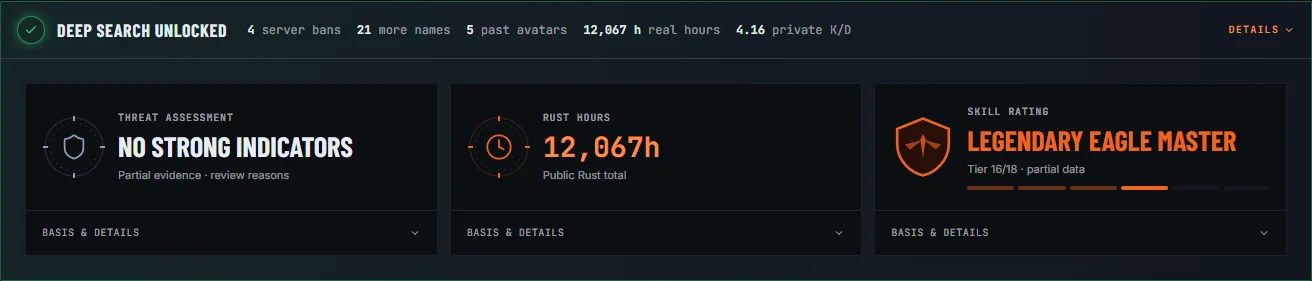
After the unlock, one green line lists what it found; Details opens the full readout and the refresh button. The three tiles become the assessments. On a phone they are three short rows.
- Threat assessment: an evidence review across experience, performance, progression, account age and ban context. It lists what it saw and what it could not see. It is never a cheating probability.
- Rust hours: real hours played, including the hours Steam hides.
- Skill rating: built from private combat.
The row of section links under the panel jumps to each section. By default every section is full width and splits into two columns inside on a wide screen. A section with nothing to show is not drawn. Every section collapses with a click on its title bar.
Report sections
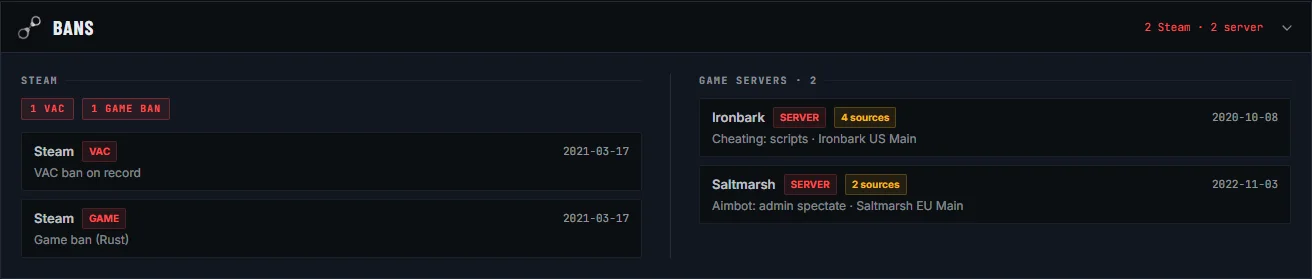
Bans. Steam bans (VAC, game and community) on the left are free. Game-server bans on the right show as a count until you unlock them; the records (server, reason, date) cost 1 unlock or come with Deep Search. No records on the page never means a clean history.
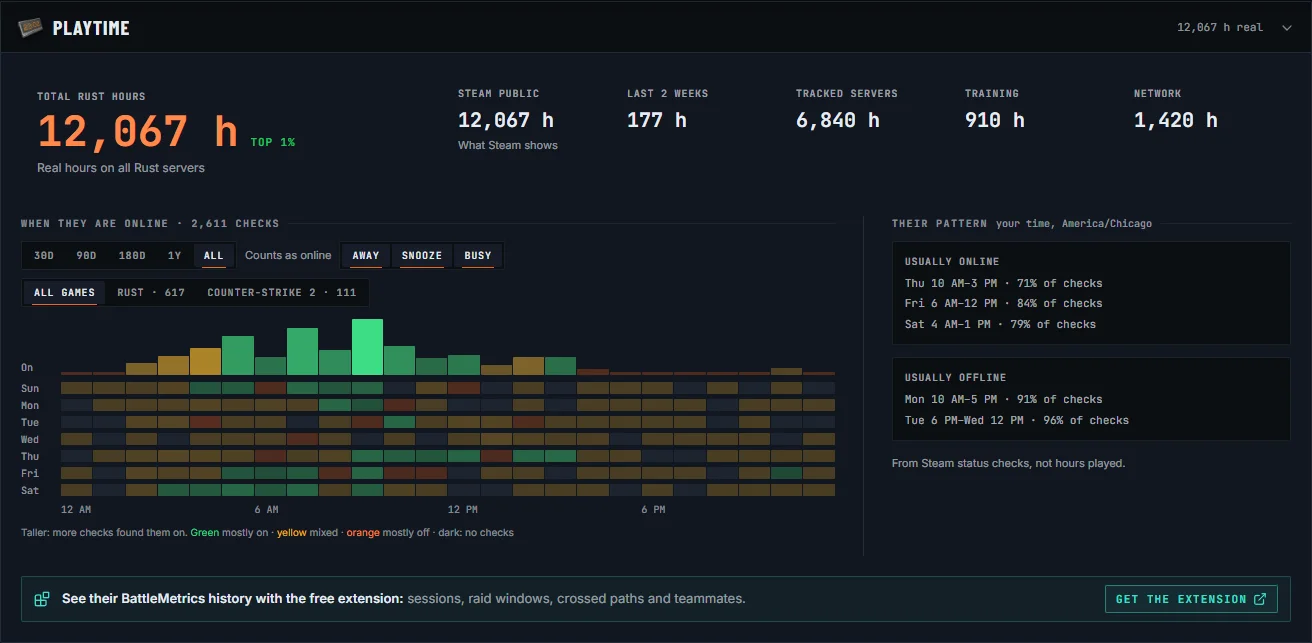
Playtime. The first number is their total Rust hours: real hours played when Deep Search has them, otherwise the public Steam total. Beside it, where the hours come from: last 2 weeks, tracked servers, training and network (masked until you unlock hours for 1 unlock or with Deep Search). Under it, RustLite charts when Steam shows the player online: bars per hour of day over a weekday grid, and the windows they are usually online or offline. Pick a time frame, toggle whether Away, Snooze and Busy count as online, and filter by game. Times show in your own time zone. The last line links the free browser extension, which shows their BattleMetrics history (sessions, raid windows, crossed paths, teammates) on battlemetrics.com.
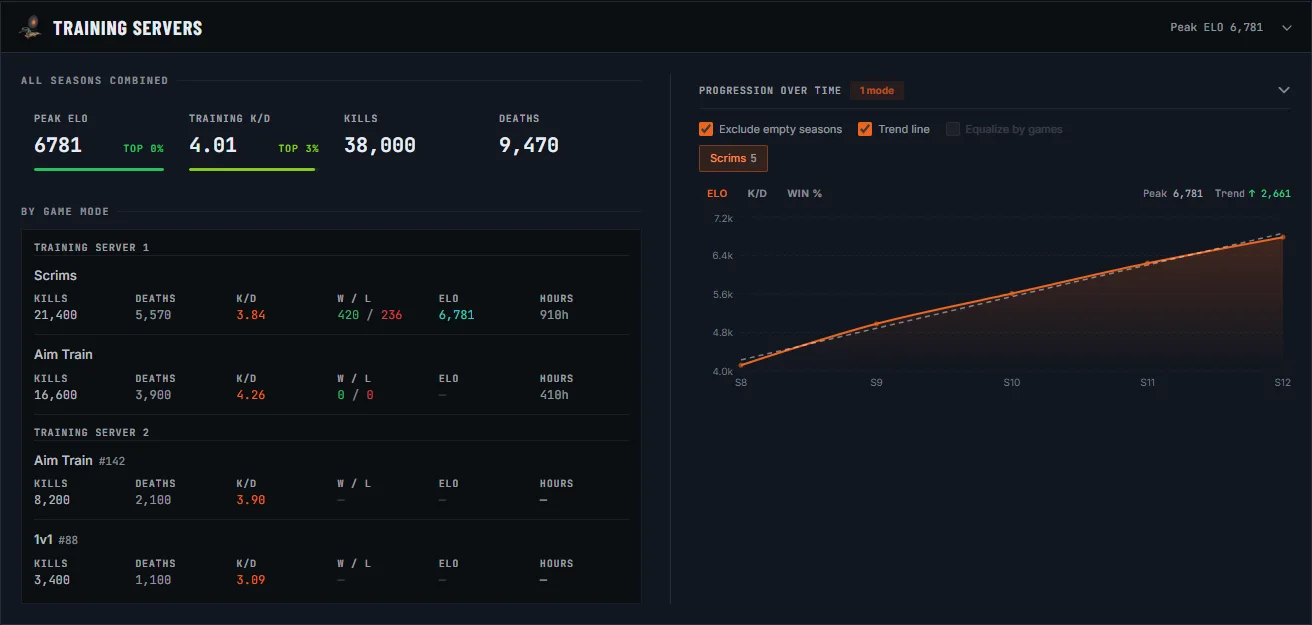
Training servers. Kills, deaths, K/D, hours, wins and losses on training servers, all seasons combined, for free. Pro adds each game mode and the season-by-season chart. On a phone each stat is one row.

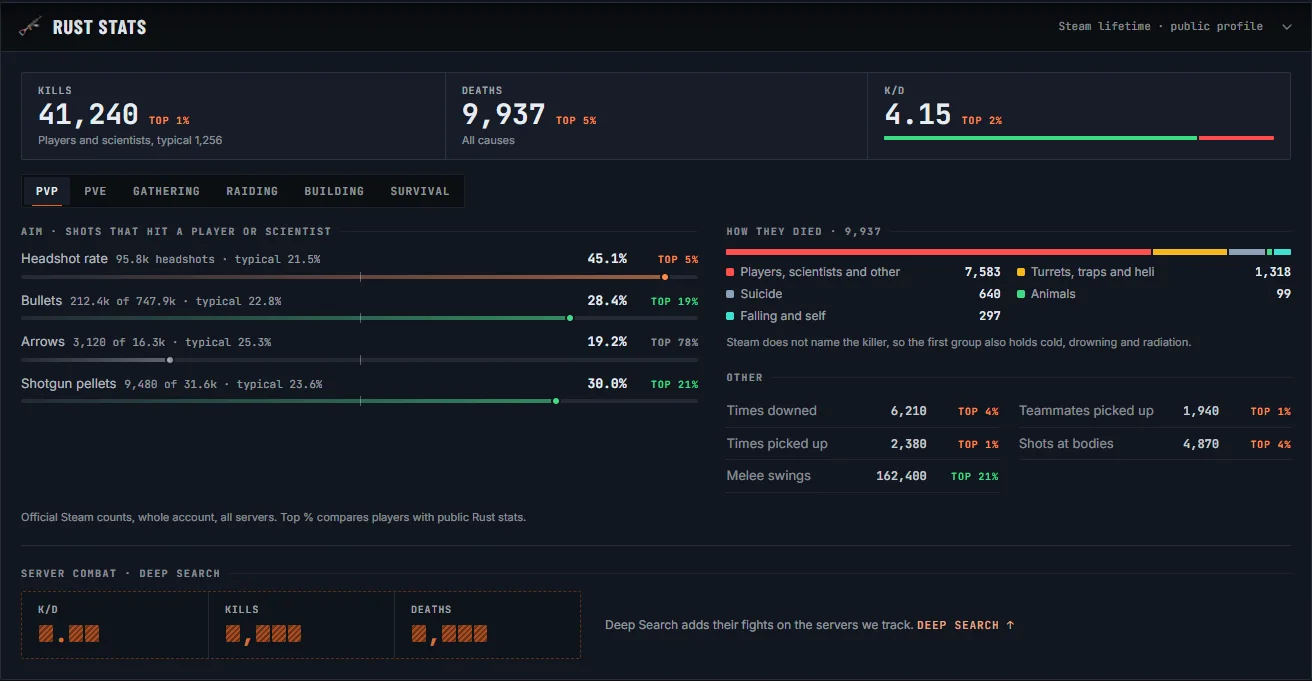
Rust stats. The official Steam counts for the whole account on all servers. Kills, deaths and K/D sit at the top. Tabs show PvP (aim and how they died), PvE, Gathering, Raiding, Building and Survival. Each count shows its Top %, which compares the player with players who have public Rust stats. Steam shows these counts only when the profile's game details are public. If Steam hides them, the section says so in one line, and each refresh checks again.
Under the Steam counts, Server combat shows kills, deaths and K/D on the servers RustLite tracks, masked until Deep Search runs. After it, the block also shows hours, headshots, PvE kills, explosives used, resources and top weapons where those servers report them, and the tracked network adds engagements, fights per hour and a row per server. If the servers are still being read when your Deep Search saves, the block says Still gathering and fills in within a few minutes, at no extra cost. It covers those servers only, not the whole account. On a private profile it takes the place of the Steam counts.
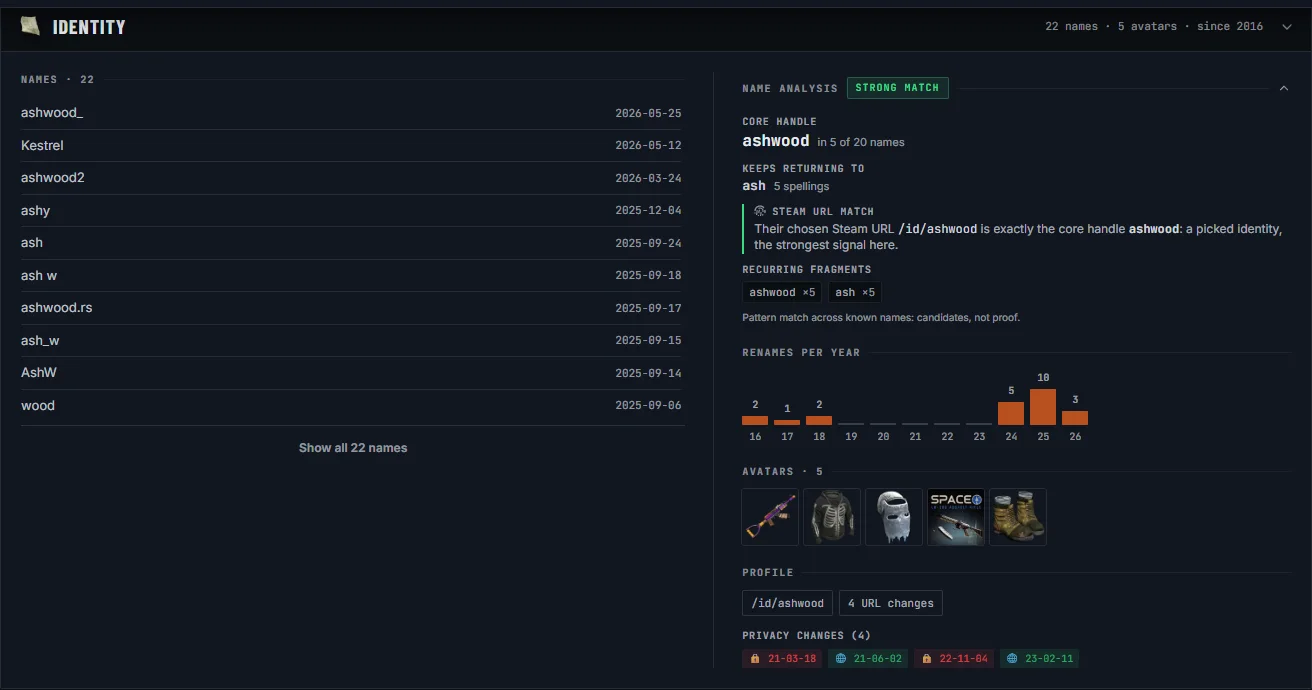
Identity. Names on the left, newest first. On the right: the name analysis (the handle they keep coming back to), renames per year, avatars, the custom URL, URL changes and privacy changes. The free report shows one name source and how many more names and avatars Deep Search holds.
Steam profile. Six tiles: Friends, Groups, Games, Achievements, Comments and Activity (profile changes over time). Each tile shows a count and one short line, for example how many friends are banned. Click a tile to open it. A dashed grey tile is empty: Hidden means Steam keeps it private, None means there is nothing. A tile that reads Open loads when you click it. Games shows the four most played as cards, then the rest as rows. When Steam shows nothing at all, the section is one line.

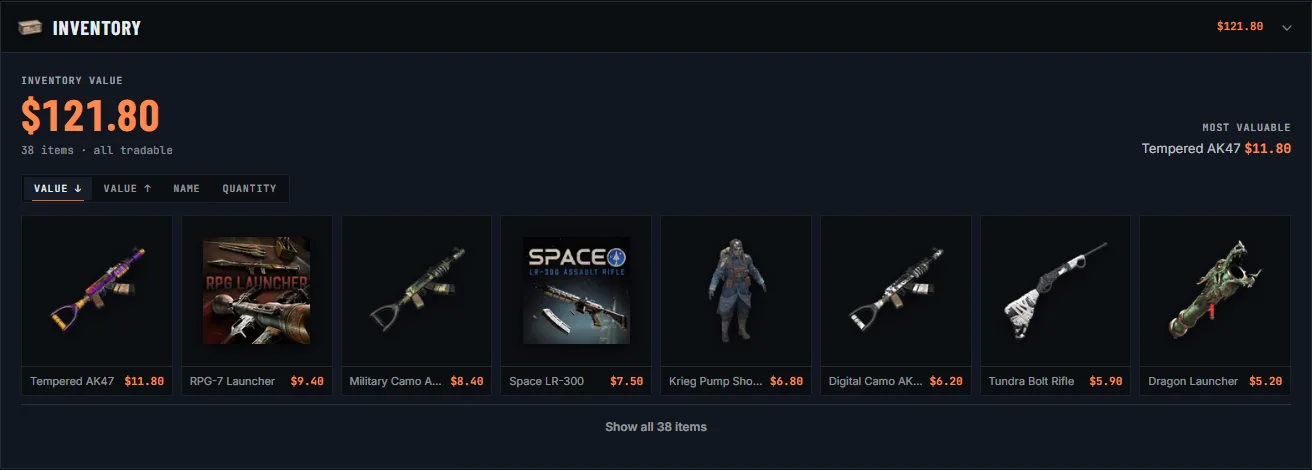
Inventory. Rust skins with a market value. The total inventory value sits in the report header (it links here) and large at the top of the section, with the most valuable item beside it. Sort the items by value (high or low), name or quantity. One row shows the first items; Show all items opens the full grid.
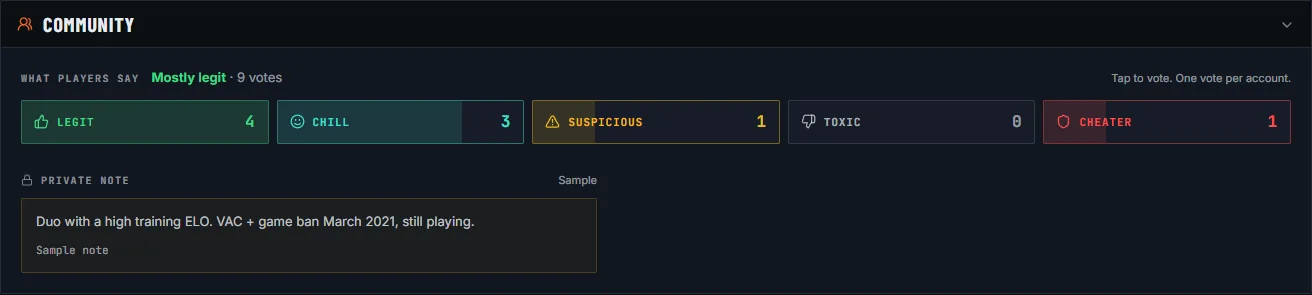
Community. The top line says what most players voted, for example Mostly cheater · 3 votes. Tap Legit, Chill, Suspicious, Toxic or Cheater to vote; each button shows its own count, and a check marks your vote. Most players have few votes, so the report shows counts, never a percentage. Under the votes, signed in: your private note, which only you can read. Press Add a private note to write one (up to 500 characters) and Edit to change it.
Private Steam profiles. Steam hides friends, inventory, games and game stats. The report says so in one line instead of drawing empty sections. Deep Search still reads real hours, server bans, past names and private server combat.
Customize the report
The buttons at the right of the section links change how every report looks. Your choice is saved in this browser and applies to each report you open. Reset brings back the default report.
- Report or Compact. Compact shows the same data as small tables of labels and numbers. Panels side by side share one height, and a long panel scrolls inside. Type in Filter fields to show only the rows that match, for example
killsorVAC. - Layout, on wide screens: one column (the default), two columns (by default playtime, training, Rust stats and Steam on the left; bans, identity, inventory and community on the right), or a sidebar. The sidebar stays in view as you scroll. It shows the key numbers, the Deep Search unlock and a list of sections.
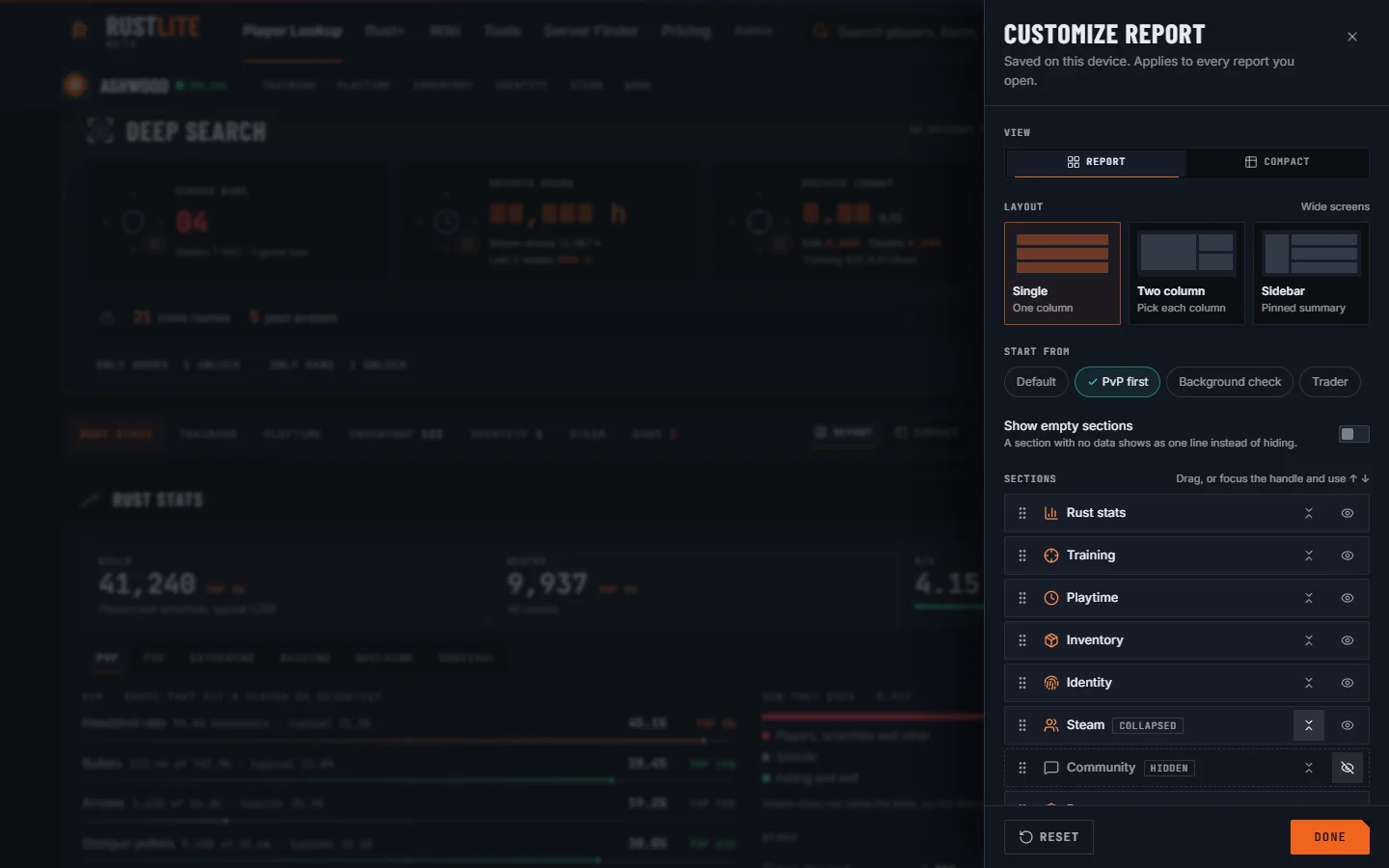
- Customize opens a panel. Drag a section to move it, or focus its handle and press the arrow keys. The eye button hides a section. The arrows button makes a section start collapsed. With two columns, L or R puts a section in the left or right column. Show empty sections draws a section with no data as one line instead of hiding it. Start from sets a ready order: PvP first, Background check or Trader.
- In the compact view, Customize also sets the number of Columns (1 to 4), and a number on each section picks its column. Chips under a section turn its parts on or off: the online heatmap, past avatars, name history, the item list, and each Rust stats group. Rust stats starts with PvP only.
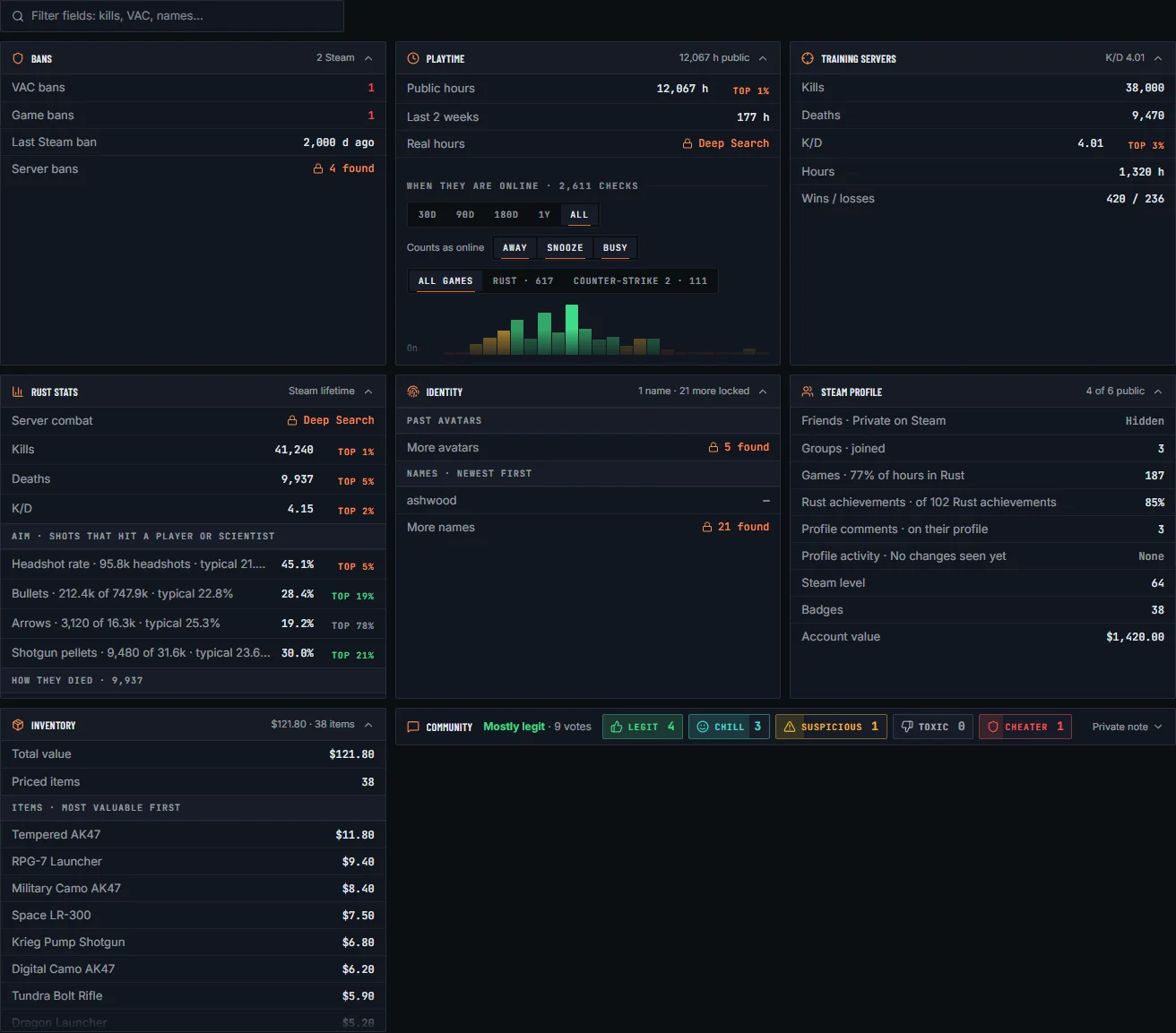
Locked data stays locked in every view. Compact shows a lock and Deep Search where the full report shows the unlock.
Unlocks
Public Steam data is free. Data that costs RustLite money to fetch is paid with unlocks, and only when the result is useful: an empty answer is never charged.
- Only hours: 1 unlock, under the Deep Search tiles. Real hours in Playtime.
- Only bans: 1 unlock, beside Only hours. Server-ban records only.
- Deep Search: hours, bans, network combat, combined names, identity and avatar history, plus the threat and skill assessments, in one report. Priced by plan: Free 5, Wipe Pass 4, Plus 3, Pro 1 unlock. A part you already bought turns green in the panel; it does not lower the Deep Search price.
Before any unlock leaves your balance, a short brief opens: what you get, how the search works, and when the unlock comes back. Tick Do not ask again to skip it, or switch it back on under Account → Overview → Confirm unlock spends.
A purchased report is a saved snapshot: reopening it is free on every plan, even after a downgrade. Pressing refresh on a purchased report runs a fresh search and can charge again. Pro-only training detail leaves with the Pro subscription.
Unlocks arrive with a paid plan (Wipe Pass 15 a week, Plus 40 a month or 400 a year, Pro 60 a month or 600 a year) and never expire. Unlock packs are available to paid plans. Any signed-in account, including Free, can spend a balance it already holds. See Plus for the plans.
Online alerts
RustLite can alert you when a player goes online or offline, even when their Steam profile is private and without BattleMetrics. It catches most Rust sessions, not every one. Start it from Watch 48 h · 1 unlock in the report header. The line under the button shows how many unlocks you have.
- Press Watch 48 h. Signed out, the button reads Online alerts · Sign in. The watch works on private profiles too.
- The watch runs for 48 hours and checks every few minutes, even with a private profile. One unlock is held, not spent.
- While it runs, the header button reads Watching with the hours left. Press it to see online or offline, the number of changes, when the player was last seen and the change log, with the alert settings and Stop.
- When the 48 hours end (or you stop it), the unlock is charged only if we saw the player online at least once. If we don't see them come online, it is refunded.
- Each change rings the bell in the navbar. Device alert, Discord DM and Telegram are set once under Account → Notifications, each with its own on and off switch; you do not need Rust+ for them.
The first watch opens a short brief: how the watch works, where alerts go (with buttons to connect each channel), and Share with my Rust+ team. Sharing is off by default, so only you get your alerts. Discord DMs need you to join the RustLite Discord once; the Notifications tab shows a Join server button until you do.
Exports, watchlist, history
The buttons on the right of the header strip save and export the report you are looking at:
- Watchlist adds the player to your watchlist, with ban alerts on. Its menu adds labels and a note, puts the player in a group, turns ban alerts off, or removes them.
- Text copies a full plain-text report; Discord copies a short brief formatted for a Discord message.
- CSV and JSON download the stats; Dossier opens a printable page.
The watchlist is on paid plans: Wipe Pass 25 players and 3 groups, Plus 50 and 10, Pro 100 and unlimited groups. It drops down when you click the home search box, and sits in Account → Watchlist.
- Ban alerts: RustLite checks every player on the list for new VAC, game and community bans and alerts you when one appears.
- Groups: put the team you fight in one group. The group card shows how many of them are online, sets ban alerts for all of them, and Watch 48 h starts online alerts on every member at 1 unlock each. Each unlock is refunded if we don't see that player come online.
- Labels and notes: tag a player Teammate, Friend, Enemy, Suspect or Raider, or with your own word, and add a note. Only you see them.
- Seen: the report header shows when you last looked the player up, with your labels and the groups they are in. On a friends list, an eye marks players you looked up before and a bookmark marks players on your list. Hover for the details.
- Share a group: the share button on a group card makes a link (view only or can edit) and can share the group with your in-game team on one paired Rust+ server. Friends on a paid plan open the link to join. Viewers can copy the group into their own watchlist; editors can also add and remove players and change the group's labels and notes, which everyone in the group sees. Groups shared with you are under Shared with you.
Your latest searches drop down when you click the home search box. All of them are listed on your account page, with a filter box. On a paid plan each row shows your labels and groups, a button to add the player to your watchlist, and a filter for players on or off your list.
Limits and privacy
- Ordinary searches per day: Free 5, Wipe Pass 25, Plus 50, Pro unlimited. Without an account you get one lookup a day; a free account gets 5. When the free searches run out, upgrade or wait for tomorrow.
- Players who opted out with the Rust data provider still get a report from Steam-side data (identity, public hours, Steam stats, friends, games, inventory). Provider-only sections read Unavailable and cannot be unlocked.
- Missing data is never shown as zero hours or a clean record. Locked means not fetched.
- Your own report: Hide my profile (Pro) closes it to everyone else. Curate my profile (any paid plan) hides chosen past names (one by one, or every name that contains a word), avatars, profile changes, friends, groups, games or inventory items, with no sign that anything was removed. Bans, hours and stats always stay. Open Account → Privacy, run a Deep Search on yourself there, then pick the items.
- Press Ctrl + K anywhere on the wiki to search items and monuments; it is separate from player search.